
Enable apps from unknown sources
Go to Settings → My Fire TV → Developer Options and enable Apps from Unknown Sources.
Install the Downloader app
Search for "Downloader" in the Fire TV search bar and install the orange Downloader app by AFTVnews.
Download IPTV Smarters Pro
Open Downloader and enter this URL: https://www.iptvsmarters.com/smarters.apk — then install the APK when prompted.
Add your playlist
Open IPTV Smarters Pro → Add User → Select Xtream Codes API or M3U URL → Enter the credentials we sent you by email.
Start watching
Press Add User and your channels, movies and series will load automatically. Enjoy!

Install Downloader
Enable Developer Options → Apps from Unknown Sources in Fire TV settings, then install the Downloader app.
Download TiviMate APK
In Downloader, go to https://tivimate.com and download the latest TiviMate APK.
Add a playlist
Open TiviMate → Add Playlist → M3U Playlist → paste your M3U URL from your welcome email.
Enjoy your content
TiviMate will sync all your channels, EPG guide and VOD. Browse and start streaming.

Install IPTV Smarters Pro
Open the Google Play Store, search for "IPTV Smarters Pro" and install it.
Open the app
Launch IPTV Smarters Pro and tap "Add New User" on the main screen.
Choose login method
Select Xtream Codes API and enter your Username, Password and Server URL from the welcome email.
Load your content
Tap Add User. All your live channels, movies and series will load in seconds.
Download from the App Store
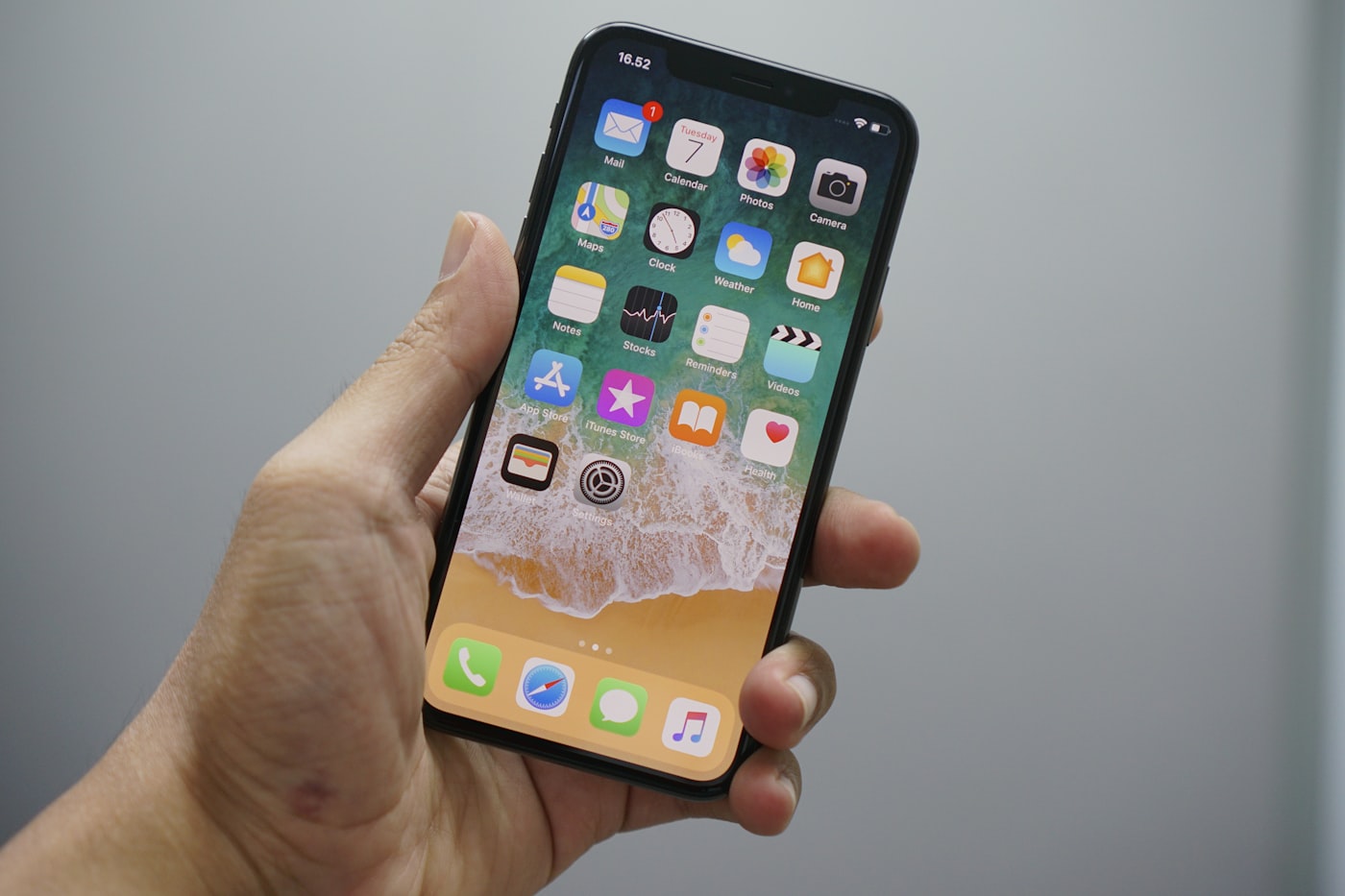
Open the App Store on your iPhone or iPad, search for "IPTV Smarters Pro" and download it.
Add a new user
Launch the app and tap Add New User. Enter a name of your choice for the profile.
Enter your credentials
Select Xtream Codes API then fill in the Username, Password and Portal URL exactly as shown in your welcome email.
Enjoy your subscription
Tap Add User and your complete channel list loads instantly.
Install Smart IPTV
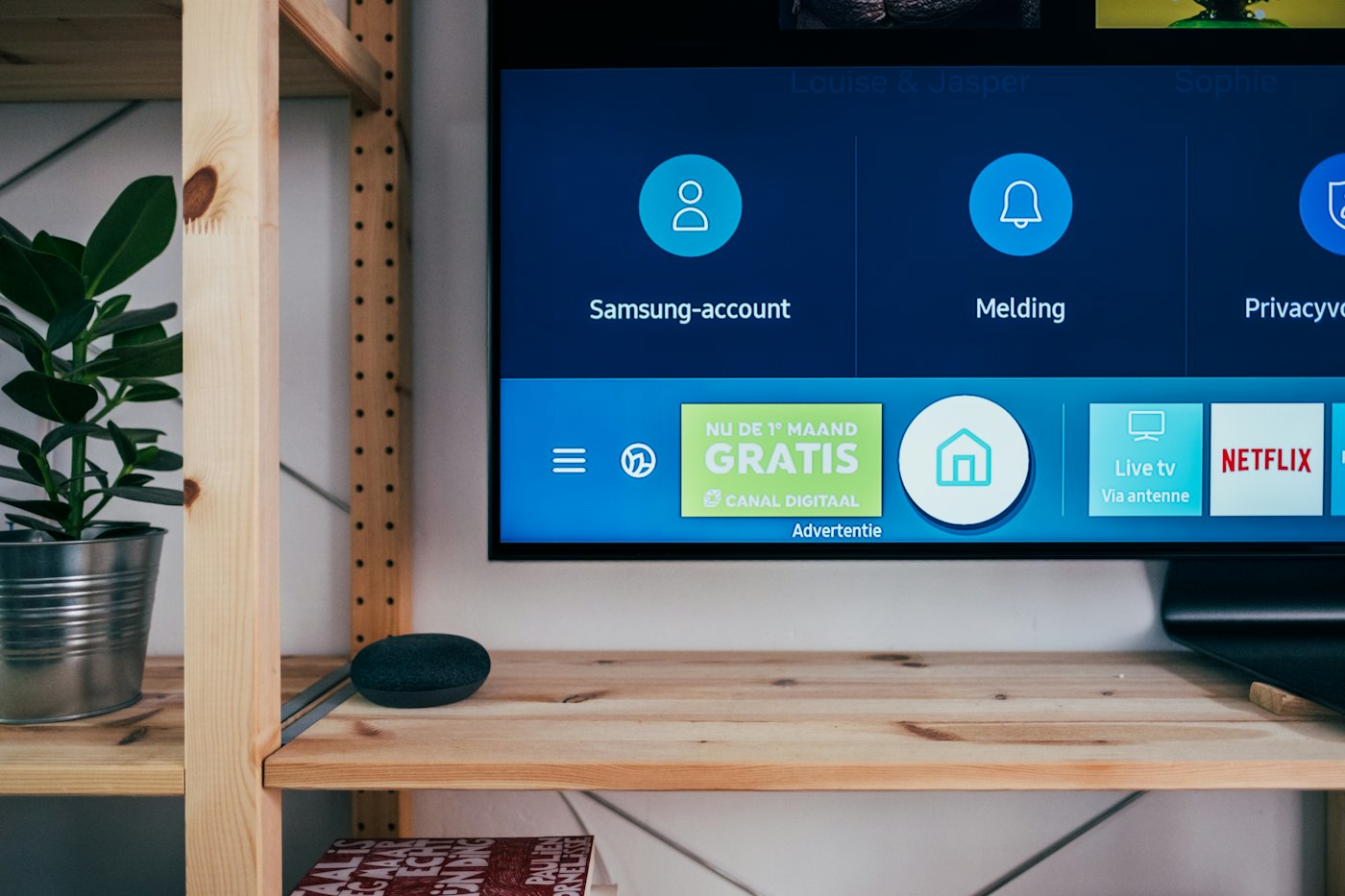
Open your TV's App Store / Smart Hub, search for "Smart IPTV" (SIPTV) and install it.
Note your MAC address
Open the Smart IPTV app. You will see your TV's MAC address on screen. Note it down.
Upload your playlist
On a phone or PC, go to siptv.eu → enter your MAC address → paste your M3U URL → click Send.
Reload the app
Go back to your Smart TV, close and reopen Smart IPTV. Your channels will be loaded and ready.

Download VLC
Go to videolan.org and download the free VLC media player for Windows or Mac. Install it.
Open a network stream
Launch VLC → click Media in the top menu → Open Network Stream (Ctrl+N on Windows, Cmd+N on Mac).
Enter your M3U URL
Paste your M3U playlist URL (from your welcome email) into the URL field and click Play.
Browse Channels
Your complete channel list will appear in VLC's playlist panel. Double-click any channel to start watching.


Open MAG Box settings
On your MAG remote, press the Setup button (or navigate to Settings from the home screen).
Go to system settings
Navigate to System Settings → Servers → Portals.
Enter your portal URL
In the Portal 1 URL field, enter the portal URL we sent you in the welcome email. Leave portal 2 empty.
Save and restart
Press OK to save. The MAG box will restart and automatically connect to the portal.
Get started
After restarting, the portal interface will load with all your channels, VOD and series. Enjoy!